Create a new version
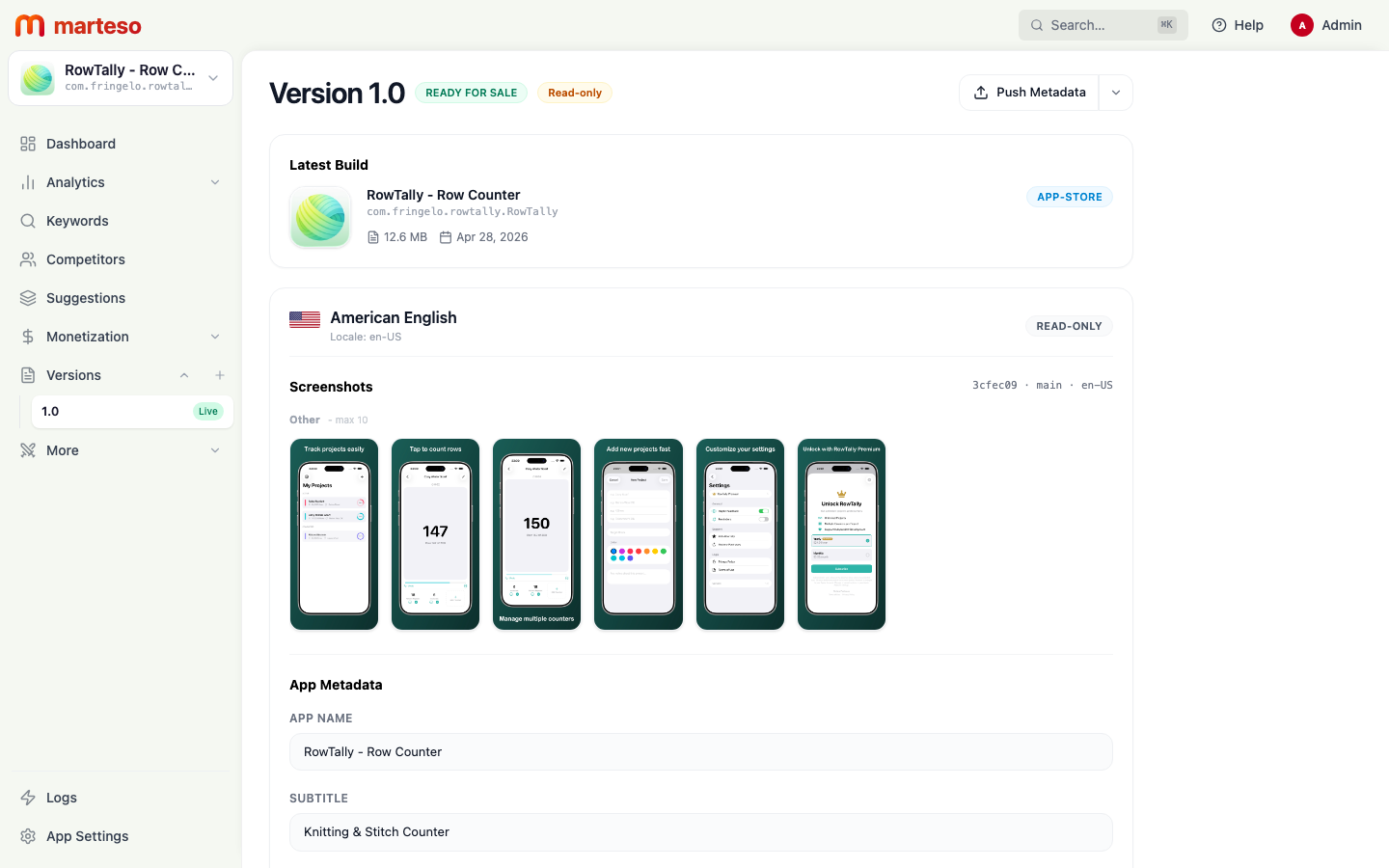
Versions in Marteso track your App Store metadata snapshots over time. Each version appears in the Versions section of the left sidebar. Clicking a version opens its detail view — showing the latest build, screenshots, and editable metadata fields for each locale.
Create a new version when you're preparing a new App Store release and want to draft updated metadata before pushing.
How versions are organized
The Versions sidebar section lists all your tracked versions with a badge showing their status (e.g., Live). Click a version in the sidebar to open its detail view. The detail view shows:
- Version number and status — e.g.,
Version 1.0 · READY FOR SALE - Latest Build — the most recent IPA from your connected GitHub repository
- Locale sections — one card per language (e.g., American English), each containing Screenshots and App Metadata fields
Step 1 — Create the version
- In the left sidebar, click the + button next to Versions.
- A small form appears inline:
- Version number — enter the version string that matches your App Store build (e.g.,
1.1.0) - Release type — select Manual Release or the appropriate release strategy
- Version number — enter the version string that matches your App Store build (e.g.,
- Click Create.
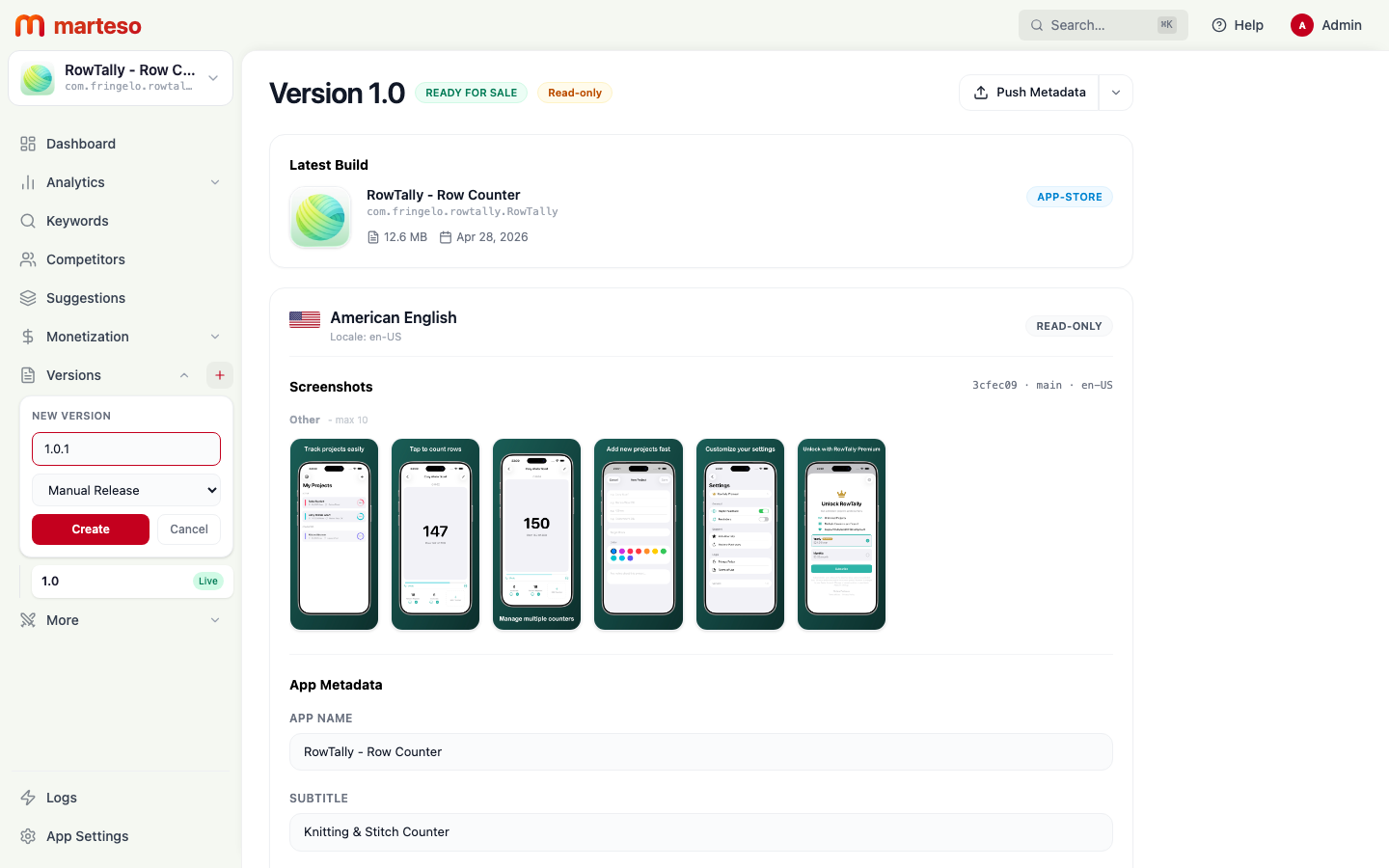
The new version appears in the sidebar list. Click it to open the detail view.
Step 2 — Edit metadata per locale
Within the version detail view, each locale has an App Metadata section with the following fields:
| Field | Notes |
|---|---|
| App Name | Your app's title — max 30 characters |
| Subtitle | Secondary title shown in search results — max 30 characters |
| Keywords | Comma-separated search terms — max 100 characters, no spaces after commas |
| Description | Full App Store description — max 4,000 characters |
Click into any field to edit it. Fields are editable when the version is in a draft or editable state. A Read-only badge indicates the metadata is locked (typically when the version is already live on the App Store).
Step 3 — Review screenshots
The Screenshots section within each locale card shows the screenshots attached to that version from the latest build. The commit hash and branch are shown (e.g., 3cfec09 · main · en-US). Screenshots are automatically populated when a build completes via build automation.
Step 4 — Push to App Store Connect
When your metadata is ready:
- Click Push Metadata in the top-right corner of the version detail view.
- Marteso sends the updated metadata for all locales to App Store Connect.
Use the dropdown arrow next to Push Metadata for additional options such as syncing from App Store Connect.