Agents
The Agents page lets you connect external AI agents — like Claude Desktop or Codex — to your Marteso workspace via the Model Context Protocol (MCP). Once connected, an AI agent can query your app data, read keyword rankings, and trigger Marteso actions directly from your AI coding environment.
Opening the Agents page
- Navigate to Settings.
- In the Settings sidebar, click Agents.
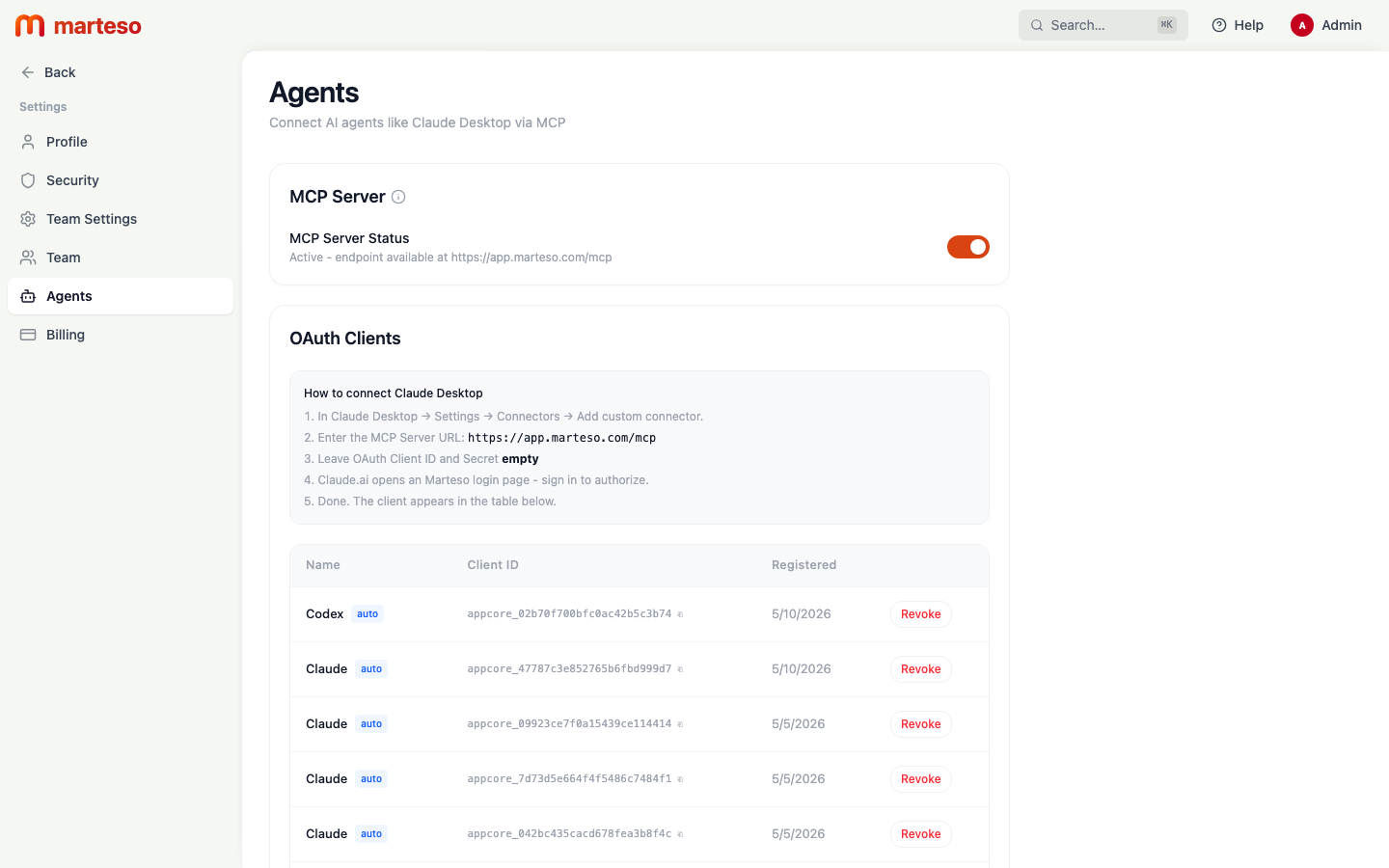
MCP Server
The MCP Server section shows the status of Marteso's MCP endpoint.
| Field | Description |
|---|---|
| MCP Server Status | Toggle on/off. When enabled, the endpoint is active at https://app.marteso.com/mcp |
Keep the MCP server enabled if you use Claude Desktop or any other MCP-compatible AI client to interact with Marteso data.
Connecting Claude Desktop
- Open Claude Desktop → Settings → Connectors → Add custom connector.
- Enter the MCP Server URL:
https://app.marteso.com/mcp - Leave OAuth Client ID and Secret empty.
- Claude Desktop opens a Marteso login page — sign in to authorize.
- Once authorized, the connected client appears in the OAuth Clients table below.
OAuth Clients
The OAuth Clients table lists all AI agents that have been authorized to access your workspace:
| Column | Description |
|---|---|
| Name | The agent name (e.g., Claude, Codex) |
| Client ID | The OAuth client identifier — auto-generated |
| Registered | When the client was first authorized |
| Actions | Revoke — immediately disconnects the client |
To revoke access for a client, click Revoke next to its row. The agent will no longer be able to query Marteso data until re-authorized.
What connected agents can do
A connected AI agent with MCP access can:
- List your apps and their keyword data
- Read analytics, suggestions, and version metadata
- Trigger Marteso jobs (builds, keyword scans, etc.)
- Manage subscriptions and in-app products
Access is scoped to the workspace the authorizing user belongs to.