Keyword research
Keyword research is the foundation of App Store Optimization. The goal is to find terms where your app can realistically rank, users are actually searching, and a ranking leads to a download. Marteso gives you the data to make those calls; this guide shows how to structure the workflow.
The research workflow
1. Start from what you already rank for
Before adding new terms, look at what's working. Open your keyword dashboard and sort by rank ascending to find terms where you're already in the top 50. These tell you:
- Which intent your app is already matching well
- Which neighboring terms (slight variations, longer tail) might be easy wins
- Where your current metadata copy is strongest
2. Add competitor and category terms
Open the Competitors tab and look at the terms your closest competitors rank well for. Add any that are relevant to your app — Marteso will start tracking ranks for those terms against your app too.
Category terms are the broad terms that define your App Store category. Even if these are high difficulty, tracking them tells you how saturated the competitive field is and whether niche terms are a better path.
3. Read the three signals together
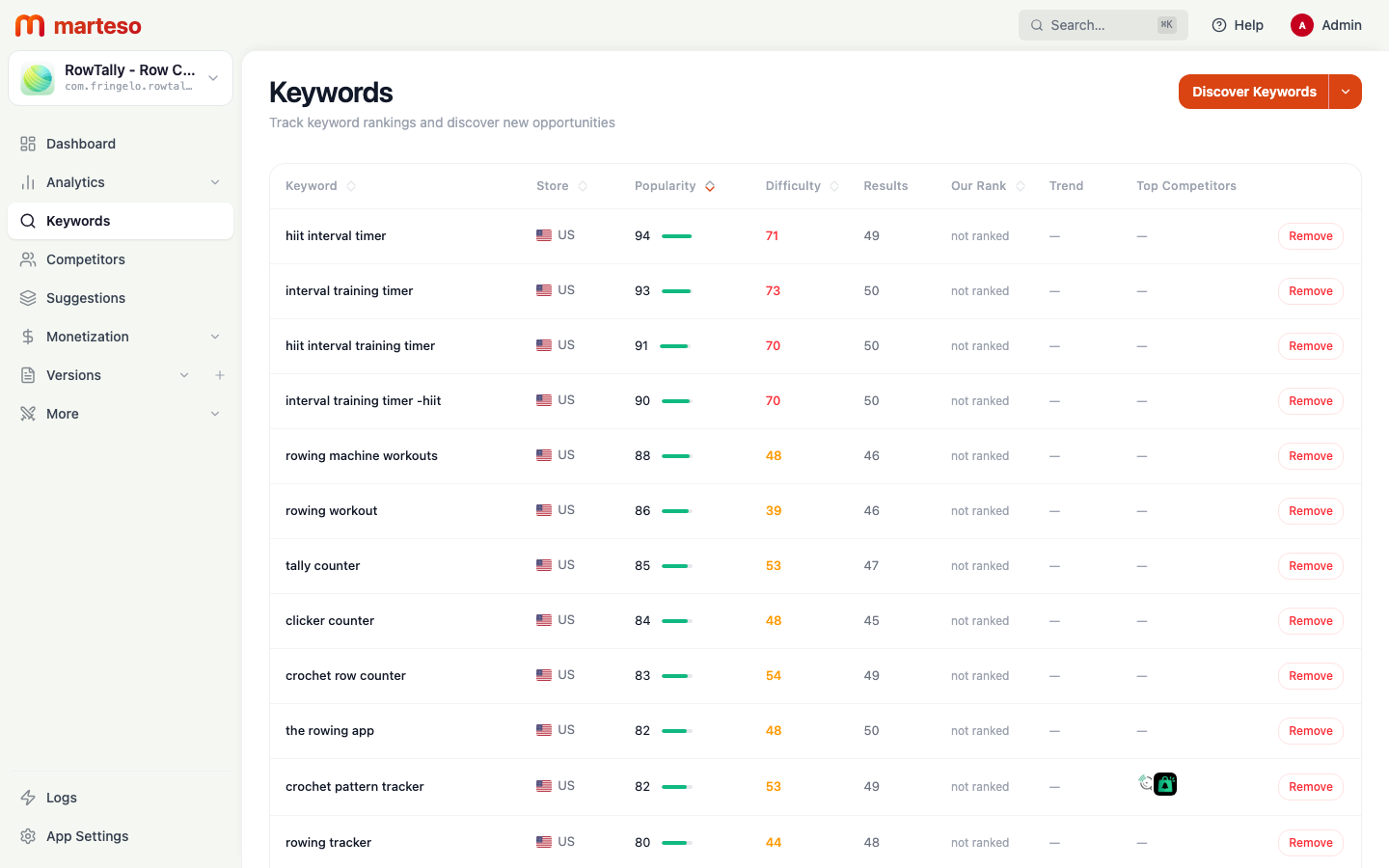
Every keyword in Marteso has three key signals:
| Signal | What it means | How to use it |
|---|---|---|
| Popularity (0–100) | Search volume relative to the App Store's most-searched terms | A score above 90 means a lot of searches; below 50 is niche |
| Difficulty (0–100) | How competitive the results page is | Higher = harder to crack top 10 |
| Rank | Your current position for this term | Blank or >250 = not currently ranking |
Look for the overlap: high popularity + moderate difficulty + rank 11–50 is where metadata changes tend to move rankings the fastest. If you're rank 1–5, protect those terms. If you're unranked on a high-popularity term, assess whether your app genuinely matches the intent before investing.
4. Example keyword table
Here's a snapshot from a real Marteso workspace tracking a workout log app. Use this format as a model for your own weekly review:
| Keyword | Popularity | Difficulty | Current rank | Action |
|---|---|---|---|---|
| workout tracker | 99 | 84 | Unranked | Monitor — too competitive for direct targeting now |
| workout log | 98 | 77 | 12 | Strengthen — include exact phrase in subtitle |
| gym journal | 95 | 78 | 8 | Protect — keep exact phrase in keyword field |
| strength tracker | 97 | 77 | 31 | Target — moderate difficulty, 31 is reachable |
| lift tracker | 96 | 79 | 45 | Target — test in keyword field next cycle |
| workout planner free | 96 | 89 | Unranked | Skip — high difficulty, weak intent match |
| routine builder | 96 | 81 | Unranked | Evaluate — matches app capability, test for one cycle |
| bodybuilding log | 91 | 70 | 6 | Protect — niche, low difficulty, strong rank |
5. Prioritize before changing metadata
Sort your keyword list by:
- Rank 11–50 + popularity above 85 → highest priority for metadata changes
- Rank 1–10 → confirm your title/subtitle includes the key terms that drive these
- Unranked + popularity above 90 → evaluate intent match, add to keyword field only if highly relevant
- Low popularity (below 50) → long-tail testing, use for keyword field exploration
Don't try to target more than 5–7 new terms per metadata update. App Store ranking signals take time to update; too many changes at once makes it impossible to attribute results.
Review cadence
A weekly keyword review session typically takes 15–30 minutes for a single app.
Weekly (every Monday or after a release)
- Check rank changes for your top 20 monitored terms
- Flag any term that moved more than 10 positions in either direction
- Check competitor changes for context
Before each metadata update (every 4–8 weeks)
- Run a full keyword table review with the four-column format above
- Confirm which terms to target, protect, or remove
- Draft changes to title, subtitle, and keyword field
Quarterly
- Re-evaluate the full keyword list: remove terms that have never ranked after 90 days of tracking
- Add 20–30 new exploratory terms from emerging competitor keywords
- Review your group structure for categories that no longer make sense
Common mistakes to avoid
Targeting high-popularity + high-difficulty terms too early. "Workout tracker" (popularity 99, difficulty 84) is dominated by apps with thousands of ratings. A newer app does better targeting mid-volume terms where the competition page isn't locked up by large incumbents.
Repeating terms from title in the keyword field. Apple indexes title, subtitle, and keyword field separately but doesn't give extra weight for repetition. Don't waste your 100-character keyword field on terms already in your title.
Changing too many things at once. Make 1–2 metadata changes per update cycle. Give Marteso 3–4 weeks to show you the before/after rank movement. That's your learning feedback loop.