Review
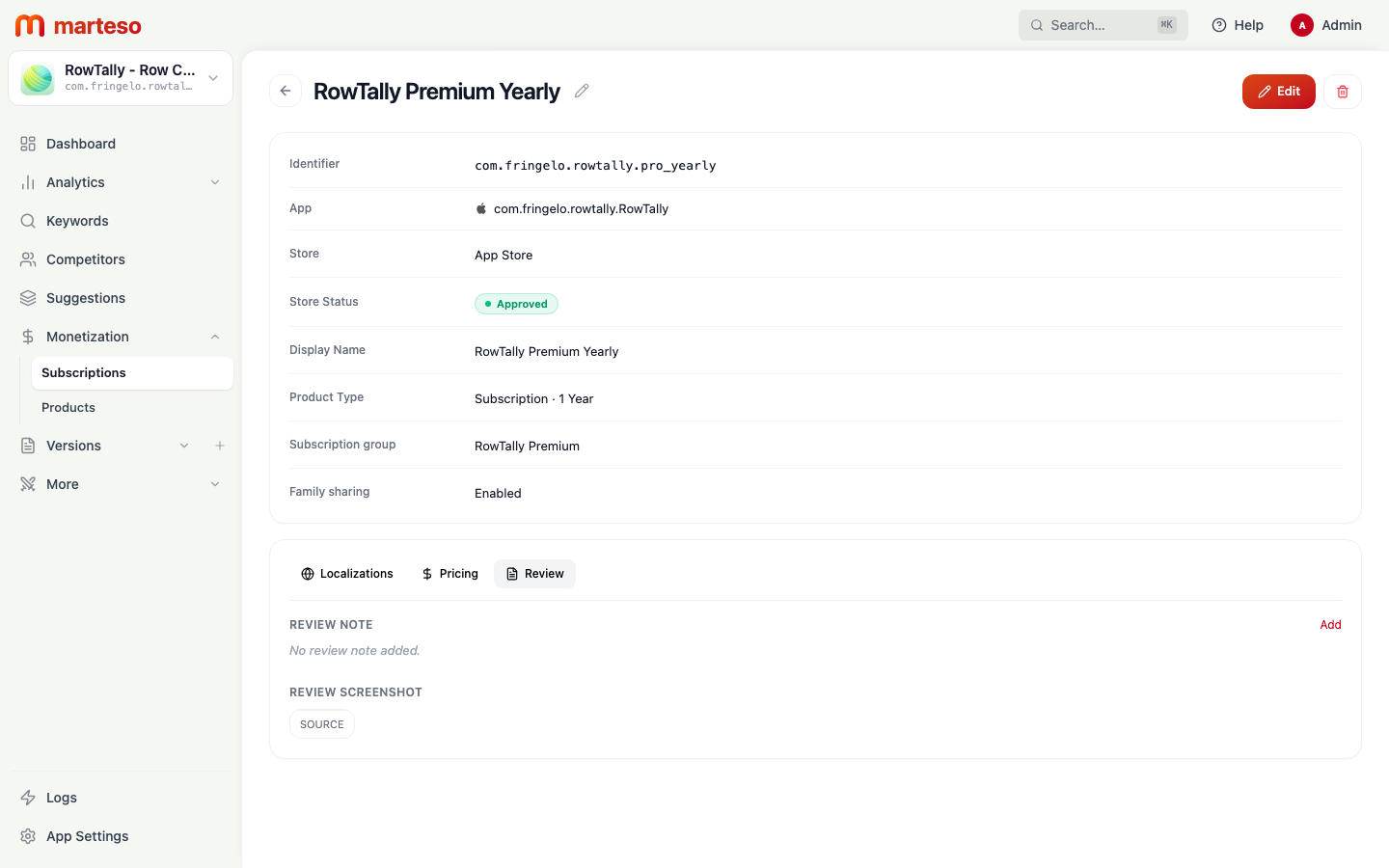
The Review tab in a subscription's detail page contains the information Apple's review team sees when they evaluate your subscription. Filling it in helps your submission pass review faster and reduces back-and-forth with Apple.
Opening the Review tab
- Navigate to Monetization → Subscriptions.
- Click a subscription group, then click a subscription row.
- In the subscription detail, click the Review tab.
Review Note
The Review Note is an optional text field that explains your subscription to Apple's reviewer. Click Add to write a note.
A good review note covers:
- What the subscription unlocks (specific features or content)
- How a reviewer can test the subscription (test account credentials, or how to reach the paywall in your app)
- Any context needed to understand the value being offered
Example:
"This subscription unlocks unlimited row counter projects and cloud sync. To review: use test account test@example.com / password123. The paywall appears on the Projects tab."
Apple reviewers can't always find your paywall during review — a note with clear steps prevents rejection for "unable to evaluate in-app purchase."
Review Screenshot
The Review Screenshot is an optional upload of your paywall or subscription selection screen. Click Source to upload an image.
This screenshot helps reviewers verify:
- That the paywall is accessible within the app flow
- That the pricing shown to users matches the price you submitted
- That the subscription offer is clearly described to users before purchase
Upload a screenshot that shows the subscription options and price as a user would see them.
Before submitting
- Review Note explains what the subscription offers and how to test it
- Review Screenshot shows the in-app paywall or subscription selection UI
- At least one Localization is present (English, United States minimum)
- A price is set for at least one territory (United States minimum)
Once these are in place, the subscription is ready to be submitted to App Store Connect via the Edit flow on the subscription detail page.