Logs
The Logs page shows the history of all build jobs Marteso has run for the current app. Build jobs are triggered automatically by GitHub pushes or manually via Run Now.
Opening Logs
Click Logs in the bottom of the left sidebar (below the main nav sections).
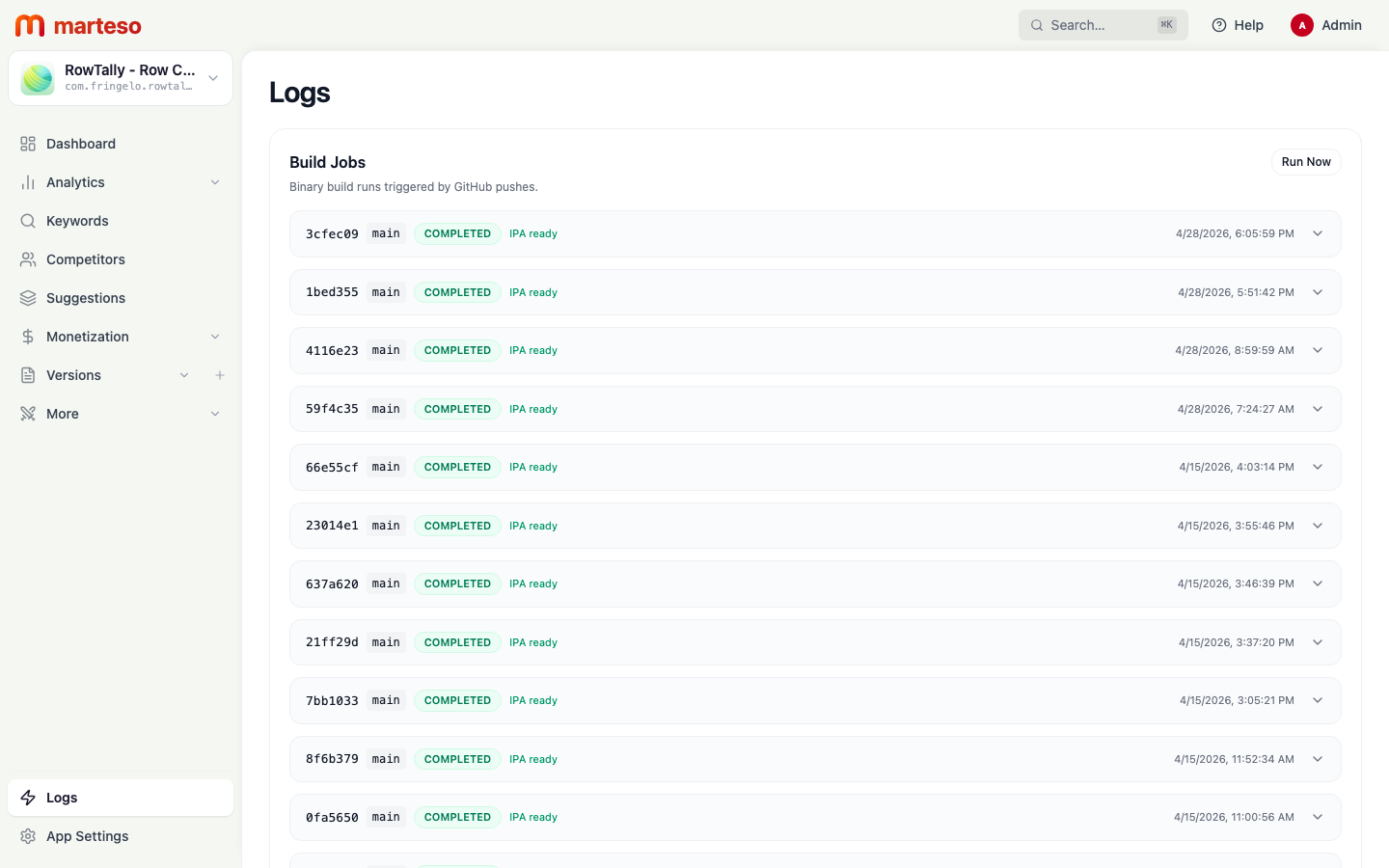
Build Jobs
The Build Jobs section (subtitle: Binary build runs triggered by GitHub pushes) lists every build in reverse chronological order.
Each row shows:
| Column | Description |
|---|---|
| Commit hash | The short Git commit hash that triggered the build (e.g., 3cfec09) |
| Branch | The Git branch the commit was pushed to (e.g., main) |
| Status | COMPLETED — build succeeded. FAILED — build stopped with an error. |
| IPA ready | Badge shown when the build produced a signed IPA binary |
| Timestamp | Date and time the build completed |
| Expand | Click the chevron to open the full build log output |
Running a build manually
Click Run Now in the top-right corner of the Build Jobs section to trigger a build using the latest commit on your connected branch, without pushing new code.
This is useful when:
- You need to regenerate screenshots without a code change
- You're testing updated signing credentials
- A previous build failed and you've resolved the underlying issue
Reading a build log
Click the chevron (▼) on any row to expand the full log output for that job. The log shows each pipeline step, its timing, and any error output.
Common failure causes:
| Error | Likely cause |
|---|---|
| Code signing error | Certificate or provisioning profile expired — update in App Settings |
| No screenshots found | UI tests ran but didn't produce XCTest screenshot attachments |
| Build timed out | Build exceeded the time limit — check for infinite loops or unusually large build products |
| Repository not found | GitHub connection was revoked — reconnect in App Settings |