App settings
App Settings is the per-app configuration page. Each app you've connected to Marteso has its own App Settings. Find it at the bottom of the left sidebar (below Logs).
Opening App settings
Click App Settings at the bottom of the left sidebar, or navigate to Settings → App Settings.
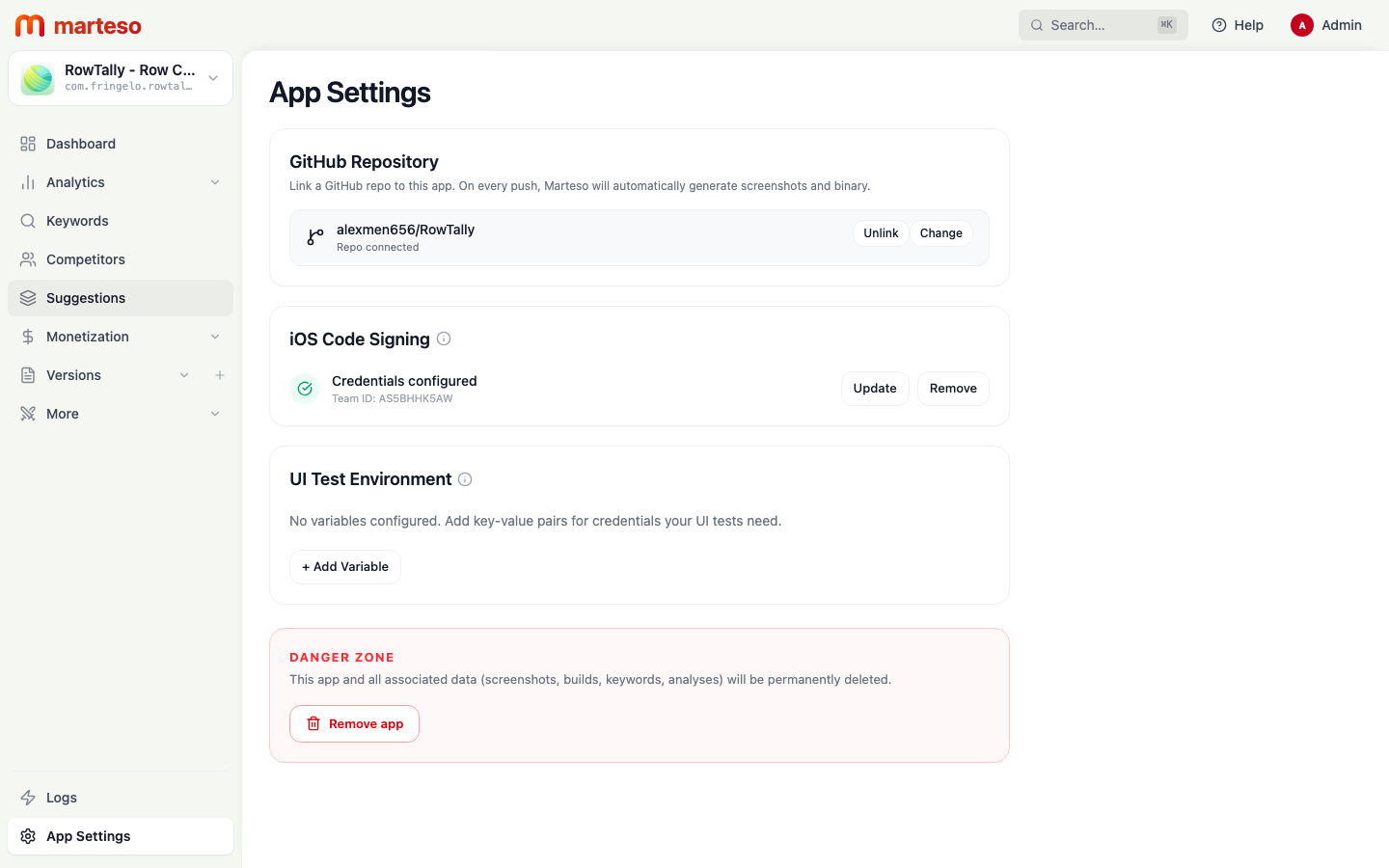
GitHub Repository
Linking a GitHub repository enables automatic IPA builds and screenshot generation on every push. See Build automation for the full workflow.
To connect a repository:
- Click the connect button in the GitHub Repository section.
- Authorize Marteso to access your GitHub account.
- Select your repository.
Once connected, the section shows the linked repository (e.g., alexmen656/RowTally) with the status Repo connected and two actions:
- Unlink — removes the GitHub connection and stops automatic builds
- Change — switch to a different repository
iOS Code Signing
Marteso needs signing credentials to produce a signed IPA during builds. When credentials are configured, the section shows Credentials configured and the associated Team ID.
| Field | Description |
|---|---|
| Team ID | Your Apple Developer Team ID (found in the Apple Developer Portal → Membership) |
| Certificate (.p12) | Your distribution certificate exported from Keychain Access |
| Provisioning Profile | The .mobileprovision file for your app |
Click Update to upload new credentials, or Remove to delete the stored credentials. Marteso validates credentials on upload — an expired certificate will show a warning.
UI Test Environment
Marteso runs your Xcode UI tests to generate screenshots during builds. If your tests require environment variables (for example, test account credentials), add them here.
Click + Add Variable to add a key-value pair. Variables are injected into the test environment at build time so your UI tests can authenticate or configure themselves without hardcoding credentials in source code.
Danger Zone
The Danger Zone section contains the Remove app action.
Clicking Remove app permanently deletes the app from your Marteso workspace — including all screenshots, builds, keyword data, and analyses. The app remains on the App Store; only the Marteso data is deleted.
This action cannot be undone.