Connect an app
Connecting your first app is the prerequisite for everything else in Marteso — keyword tracking, AI suggestions, competitor monitoring, and analytics all require an app to be linked.
Before you start
You need an Apple App Store Connect account with at least one app submitted or in development. Marteso imports your apps directly from App Store Connect.
Step 1 — Add your app
- Open the app switcher in the Marteso sidebar (the app name button at the top of the left nav).
- Click Add project.
- Marteso pulls available apps from your App Store Connect account. Select the app you want to track and click Import.
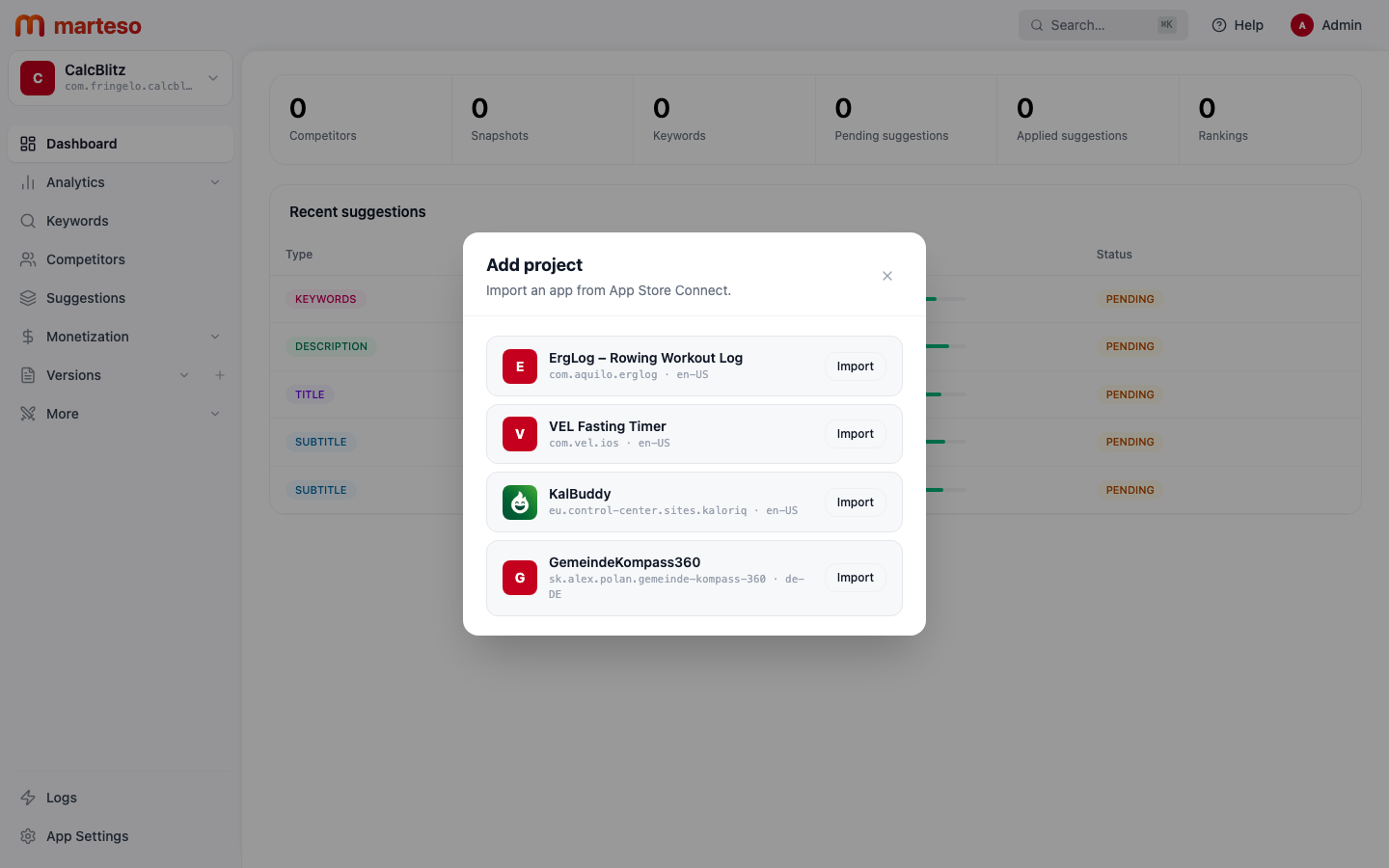
Marteso immediately starts fetching your app's current metadata and queuing the first keyword and ranking scans.
Step 2 — Wait for the first sync
After import, the dashboard populates as data arrives:
| Data | Typical wait |
|---|---|
| App metadata (title, subtitle, description) | A few minutes |
| Initial keyword rankings | Up to 24 hours |
| Competitor data | 24–48 hours |
You'll see the counts on the dashboard card update as data arrives. The Keywords tab and Versions page will be active within minutes.
What to do next
Once the first sync completes:
- Open Keywords and click Discover Keywords to populate your first tracked keyword set
- Open Versions to review and edit your current App Store metadata
- Follow Add first keywords to understand your keyword data