Team settings
Team Settings holds the workspace-level configuration that applies to all apps and members in your Marteso account. Navigate here to connect your App Store Connect API key, configure which AI provider powers metadata suggestions, and set preset metadata defaults.
Opening team settings
- Click your account icon or navigate to Settings.
- In the Settings sidebar, click Team Settings.
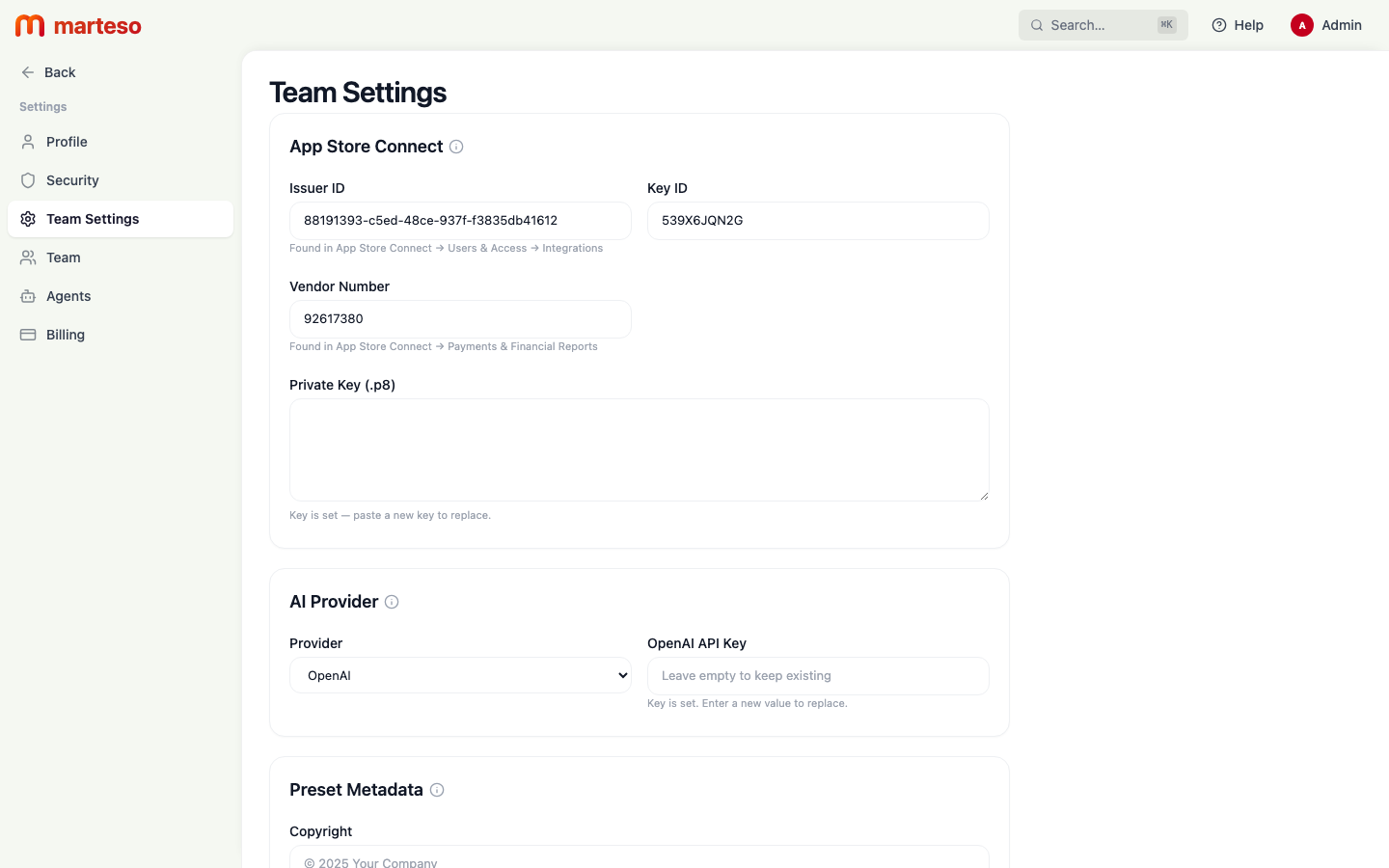
App Store Connect credentials
Marteso uses your App Store Connect API key to read and write metadata, subscriptions, and analytics data on your behalf.
| Field | Where to find it |
|---|---|
| Issuer ID | App Store Connect → Users & Access → Integrations |
| Key ID | App Store Connect → Users & Access → Integrations |
| Vendor Number | App Store Connect → Payments & Financial Reports |
| Private Key (.p8) | Downloaded when you first create the API key in ASC — you can only download it once |
To update credentials: paste the new values and save. For the private key, paste the full contents of your .p8 file into the text area. The field shows Key is set — paste a new key to replace when a key is already stored.
If your ASC credentials expire or are revoked, Marteso agents will stop syncing data and show errors. Updating the credentials here resolves the issue.
AI Provider
This section sets which AI model generates metadata suggestions for your apps.
| Field | Options |
|---|---|
| Provider | OpenAI or Anthropic |
| API Key | Your API key from the selected provider |
Marteso uses this key to run the AI suggestions feature. Changing the provider here affects all apps in the workspace. Your API key is stored encrypted and never exposed after saving.
Preset Metadata
The Preset Metadata section (below AI Provider) lets you set default values that are pre-filled when Marteso generates new metadata suggestions. This includes fields like Copyright (e.g., © 2025 Your Company).
These values are suggestions only — you can override them for any individual app.