AI metadata
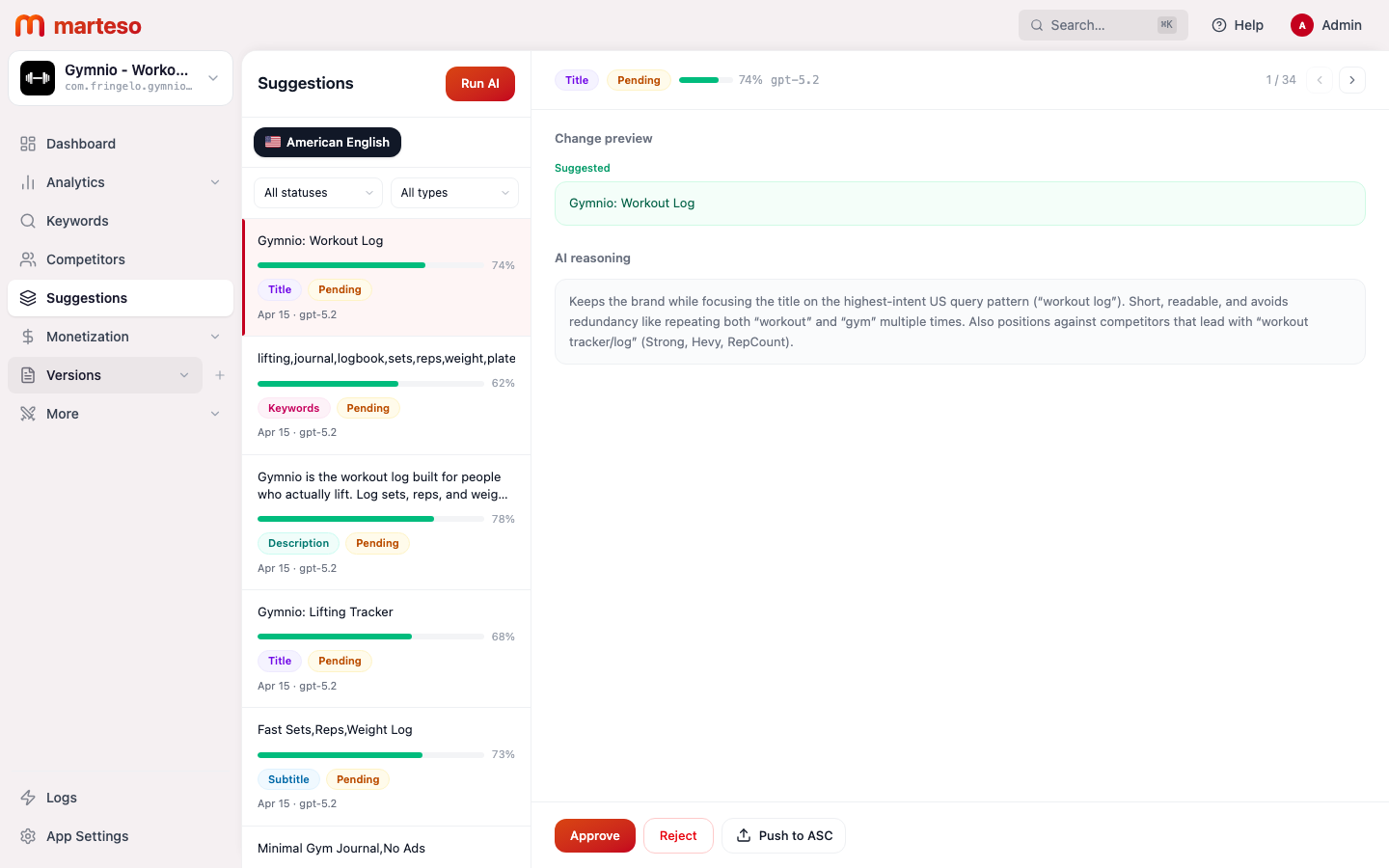
Marteso generates AI metadata suggestions for your App Store title, subtitle, keyword field, and description. Each suggestion comes with a reasoning note, a confidence score, and a status you can flip to approved or rejected. The goal is to give you better starting drafts for your next store submission — not to auto-publish anything.
How suggestions are generated
Marteso analyzes:
- Your current ranked keywords and their positions
- Competitor titles, subtitles, and keyword patterns in your category
- Apple's field constraints (title: 30 characters, subtitle: 30 characters, keyword field: 100 characters)
- Conversion patterns from similar apps in the same storefront
Suggestions are generated by AI and include a confidence score from 0 to 1. A confidence score of 0.7+ is a reasonable starting point for review; below 0.6 treat as an experimental idea rather than a recommendation.
Reviewing suggestions by field
Title (max 30 characters)
The title is your highest-weight metadata field for search ranking and the first thing a user reads. Good titles:
- Lead with your app's brand name followed by the primary keyword
- Use
:or–to separate brand from keyword phrase - Avoid generic descriptors that don't differentiate
Example suggestions for a workout tracker app:
| Suggested title | Confidence | Reasoning summary |
|---|---|---|
| Gymnio: Workout Log | 0.74 | "workout log" matches common US query pattern; avoids redundancy with "gym/tracker" already implied |
| Gymnio: Strength Log | 0.71 | Positions for the lifter niche vs general fitness; differentiates from high-competition general trackers |
| Gymnio: Lifting Tracker | 0.68 | High-intent search term for the strength training segment |
Review rubric for titles:
- Does it include the primary keyword your app is targeting this cycle?
- Is it under 30 characters (count the character display in Marteso)?
- Does it avoid repeating words you'll use in the subtitle?
- Would a user understand the app's core job from the title alone?
Subtitle (max 30 characters)
The subtitle is the second most powerful search field and a key conversion element — users see it in search results. Use it to complement the title (don't repeat the same keyword) and address a secondary user intent or differentiator.
Example suggestions for the same app:
| Suggested subtitle | Confidence | Reasoning |
|---|---|---|
| Progressive Overload Nudges | 0.77 | Unique differentiator, few competitors message this in subtitle position |
| No Ads, No Account, No Sub | 0.73 | Trust signal; directly counters competitor complaints about paywalls |
| Fast Sets, Reps, Weight Log | 0.71 | Core job-to-be-done; conversion-focused |
| Progress Charts & PRs | 0.66 | Feature benefit aligned with what lifters look for in reviews |
Pick the subtitle that best complements your title choice. If the title leads with a keyword, the subtitle should lead with a differentiator or benefit — and vice versa.
Keyword field (max 100 characters, comma-separated, no spaces after commas)
The keyword field is not user-visible but Apple indexes every term you include. Rules:
- Never repeat exact words already in your title or subtitle — Apple ignores duplicates
- Use singular forms; Apple typically matches both singular and plural
- Separate terms with commas and no spaces:
lifting,journal,logbook,sets,reps - Max 100 characters total, including commas
Example keyword field suggestion:
lifting,journal,logbook,sets,reps,weight,plates,barbell,dumbbell,hypertrophy,bodybuilding,powerlifting,pr,1rm,volume
This set targets equipment terms and lifting-specific goals, assuming the title already covers "workout/strength" so those words don't need to be repeated here.
Description (max 4,000 characters)
The description is not directly indexed by Apple's search algorithm, but it influences conversion — how many users tap "download" after reading it. Good descriptions:
- Open with the strongest possible first 1–2 sentences (users see this in expanded view)
- Use short paragraphs, bullet points, and ALL CAPS headers to improve scanability
- Lead with benefits, not features
- Include your core differentiator early
Example opening from a high-confidence (0.82) suggestion:
Gymnio is the workout tracker built for people who actually lift.
Log sets, reps, and weight in seconds. See your progress at a glance. And when you've been stuck too long, Gymnio calls it out and nudges you to go heavier.
No account. No subscription. No ads. Ever.
This opening works because it names the audience in the first sentence, delivers the core benefit in the second, and eliminates the most common objection (paywalls) in the third.
Approving and pushing suggestions
Once you've reviewed a suggestion:
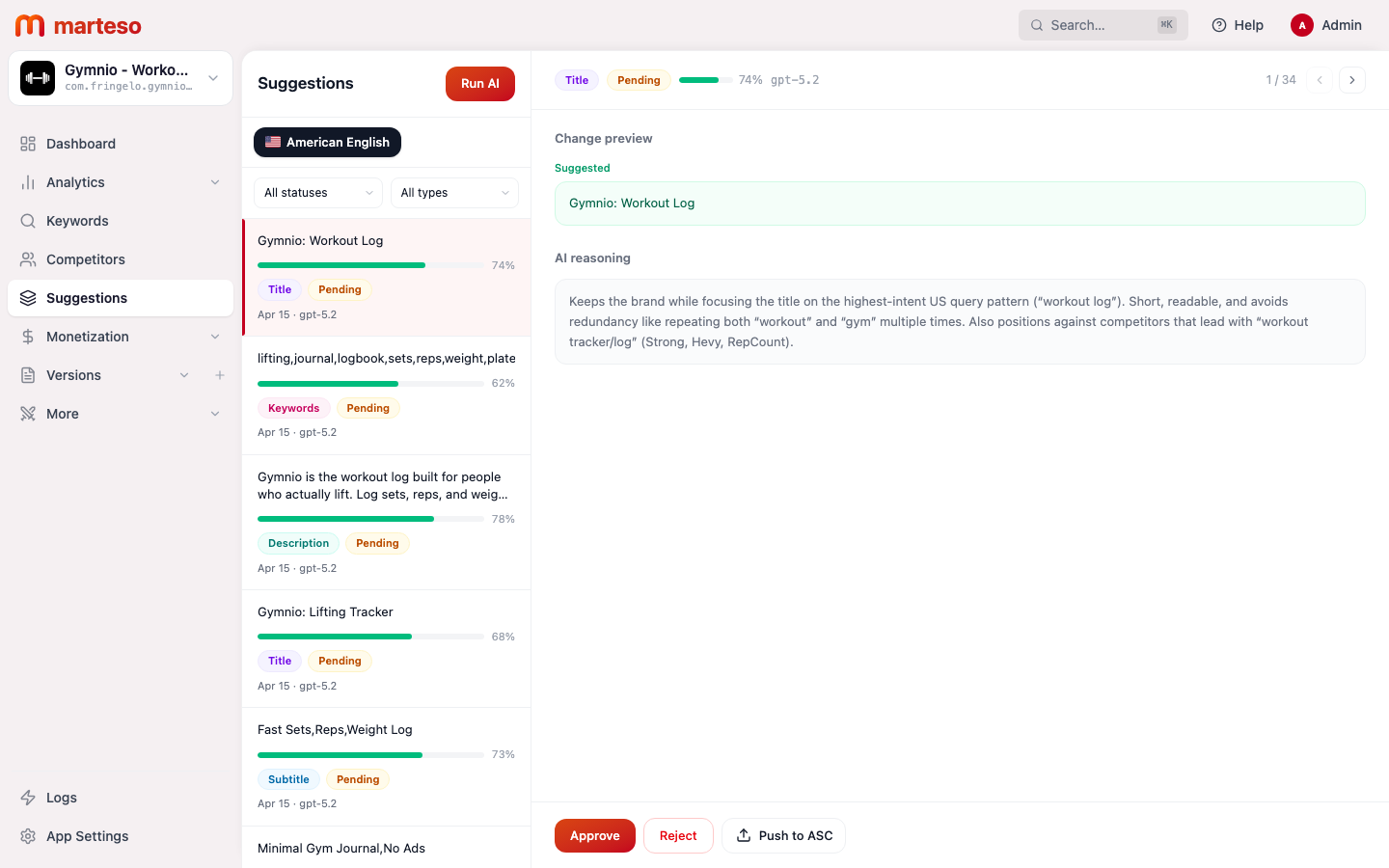
- Click Approve to mark it as approved in Marteso
- Click Reject to dismiss it
- Click Push to ASC to push all approved suggestions directly to App Store Connect (no manual copy-paste required)
You can filter the suggestions list by status (Pending / Approved / Rejected) and by field type (Title / Subtitle / Keywords / Description) to work through one field at a time.
The review rubric
Before approving any suggestion, check:
- Every suggested term matches the app's actual capabilities (don't claim features you don't have)
- Title + subtitle stay within the 30-character limit each
- Keyword field is under 100 characters, no spaces after commas
- No keyword is repeated across title, subtitle, and keyword field
- The description's first 250 characters work as a standalone pitch
- Conversion-critical language from your current listing is preserved or improved (don't accidentally drop your best-performing subtitle)
- The tone matches your app's brand voice
The release readout template
After each metadata update, record the following so you can tie ranking changes to the specific metadata version:
## Release readout — [Date]

**Version submitted:** [App Store version number]
**Metadata changed:** [List fields: title / subtitle / keywords / description]

### Before
- Title: [old title]
- Subtitle: [old subtitle]
- Keywords: [old keyword field]

### After
- Title: [new title]
- Subtitle: [new subtitle]
- Keywords: [new keyword field]

### Target terms this cycle
- [Keyword 1] — was rank [X], target top [Y]
- [Keyword 2] — was rank [X], target top [Y]

### Readout date
Check rankings [3–4 weeks after submission date]: [date]
Fill this out before submitting and keep it alongside the App Store Connect version record for reference.