Subscription detail
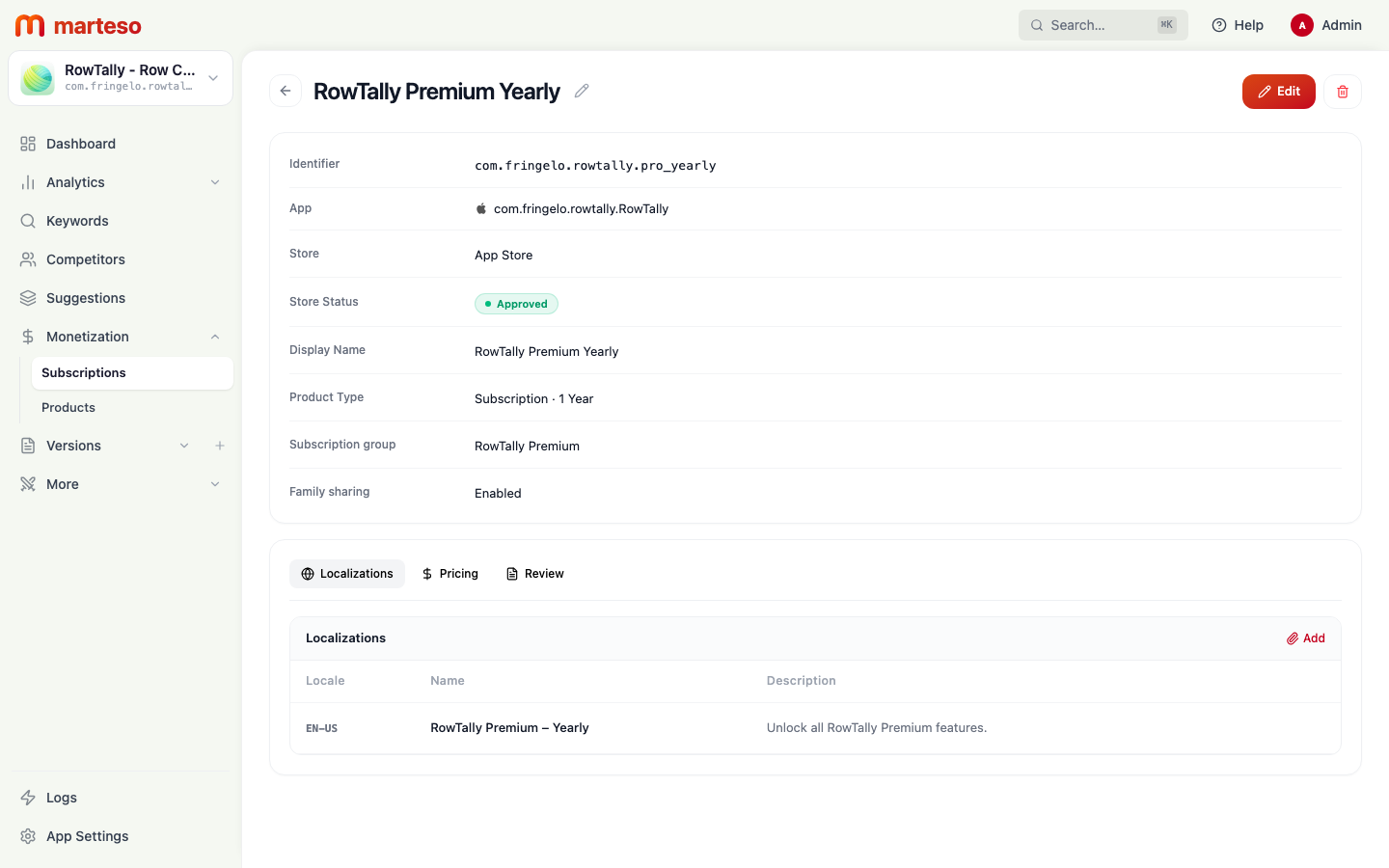
Click any subscription in the Subscriptions overview to open its detail page. The detail page is divided into a header info block and three tabs: Localizations, Pricing, and Review.
Header fields
The top section shows read-only information about the subscription:
| Field | Description |
|---|---|
| Identifier | The product ID set at creation — read-only (e.g., com.fringelo.rowtally.pro_yearly) |
| App | The bundle ID of the app this subscription belongs to |
| Store | Always App Store |
| Store Status | Current ASC status — Approved (green), Ready to Submit, etc. |
| Display Name | The user-facing name shown in subscription flows |
| Product Type | Type and renewal period (e.g., Subscription · 1 Year) |
| Subscription group | The group this subscription belongs to |
| Family sharing | Whether family members can share access |
Use the Edit button in the top-right corner to modify editable fields. The delete (trash) icon permanently removes the subscription from App Store Connect.
Localizations tab
The Localizations tab controls what users see in the App Store for each language. Click Add to add a new language.
Each localization has two fields:
| Field | Notes |
|---|---|
| Locale | Language code (e.g., EN-US, DE-DE, JA) |
| Name | Display name shown to users when they select this subscription |
| Description | Short description shown in the subscription selection UI |
Apple requires at least one localization (English, United States) before a subscription can be submitted. Add a localization for every storefront you actively support.
Pricing tab
The Pricing tab shows the price configured for each territory. Use this tab to set or change subscription prices.
See Prices for the full pricing workflow.
Review tab
The Review tab contains information Apple's review team sees when reviewing your subscription:
| Section | Description |
|---|---|
| Review Note | Optional text explaining your subscription to the reviewer. Click Add to write a note. |
| Review Screenshot | An optional screenshot of your paywall or subscription flow. Click Source to upload. |
Apple reviewers use the review note and screenshot to verify that your subscription offers legitimate value and that the in-app purchase is accessible to review. Add both before submitting a new subscription for review.