Subscriptions
Navigate to Monetization → Subscriptions in the left sidebar to manage your App Store subscriptions. Marteso reads your subscription data directly from App Store Connect and lets you create, edit, and organize subscriptions without leaving Marteso.
The Subscriptions overview
The Subscriptions page lists all subscription groups for the current app. Each group appears as an expandable section showing the subscriptions it contains.
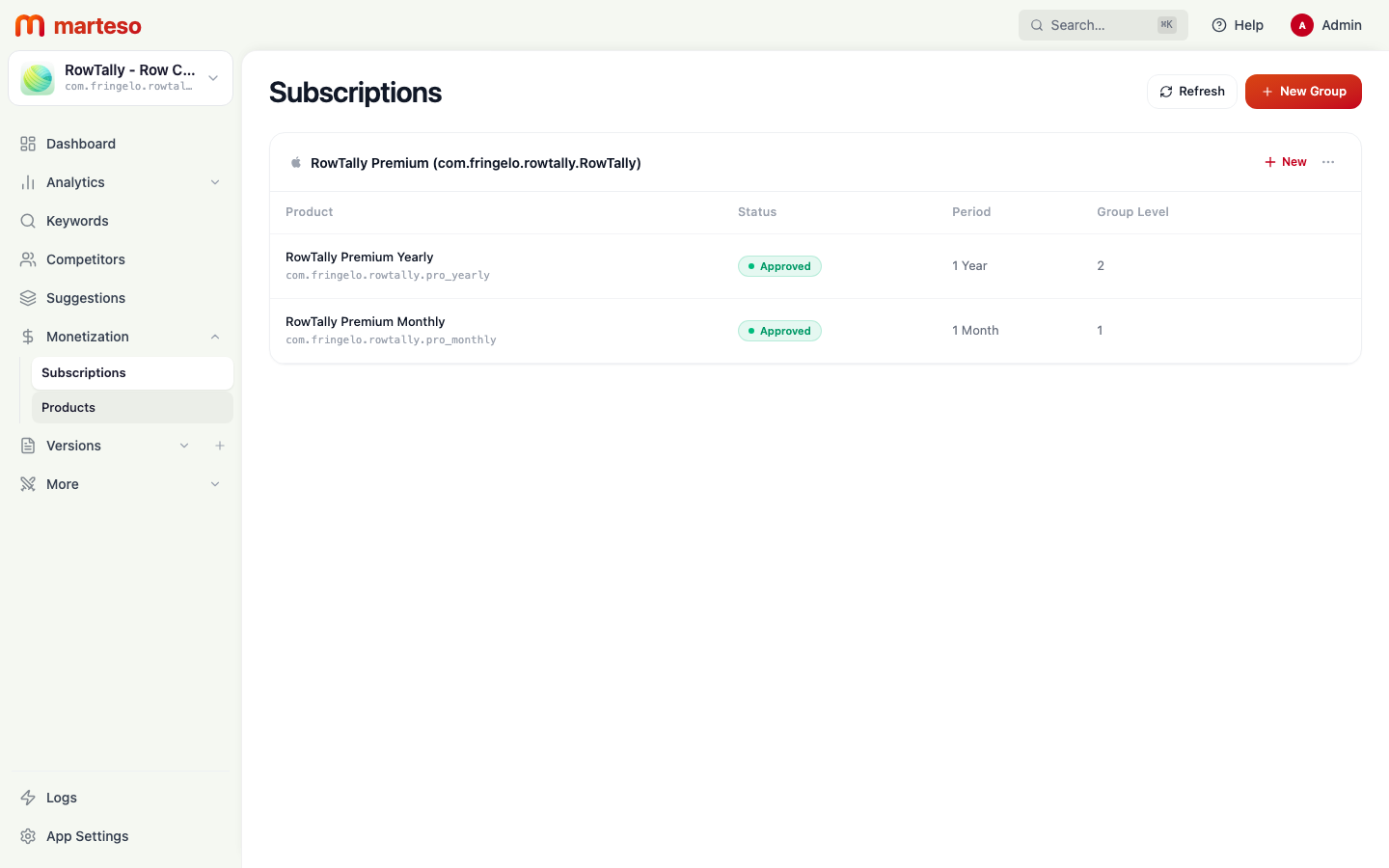
The subscription table shows four columns:
| Column | Description |
|---|---|
| Product | The subscription's display name and product identifier |
| Status | Current App Store status — green Approved, or other states like Ready to Submit |
| Period | Renewal frequency — 1 Week, 1 Month, 2 Months, 3 Months, 6 Months, 1 Year |
| Group Level | Priority within the group — used to define upgrade/downgrade paths |
How subscriptions are organized
App Store subscriptions follow a two-level hierarchy:
Subscription Group  (e.g., "RowTally Premium")
└── Subscription    (e.g., "RowTally Premium Yearly", "RowTally Premium Monthly")
    ├── Localizations  (display name + description per language)
    └── Pricing        (price per territory)
A subscription group is required by Apple. Users can only hold one active subscription from a group at a time — this is what powers upgrade and downgrade flows. Most apps have one group.
Creating a subscription group
- Click + New Group in the top-right corner.
- Enter a group name (internal — not shown to users).
- Click Create.
After creating the group, you can add subscriptions to it using the + New button that appears in the group header.
Creating a subscription
- Click + New in the header of the subscription group you want to add to.
- Fill in the subscription details:
| Field | Description |
|---|---|
| Identifier | Unique product ID (e.g., com.yourapp.premium_monthly). Cannot be changed after creation. |
| Display Name | User-facing name shown in App Store subscription flows |
| Product Type | Select Subscription and choose the renewal period |
| Family Sharing | Whether family members can access the subscription |
- Click Create.
Next steps
- Subscription detail — add localizations for each language you support
- Prices — set per-territory pricing
- Price review — add a review note and screenshot before submitting to Apple