Build automation
Marteso connects to your GitHub repository and automatically builds your app binary (IPA) and generates App Store screenshots on every push. This removes the manual screenshot capture step from your release workflow — screenshots are always in sync with your latest code.
How it works
- You link a GitHub repository to your app in App Settings → GitHub Repository
- On every push to your connected repository, Marteso triggers a build job
- The build produces a signed IPA and generates App Store screenshots
- The generated screenshots are attached to the current version in Versions
- You can review, approve, and push metadata + screenshots to App Store Connect from Versions
Step 1 — Link your GitHub repository
- Open App Settings for your app
- Under GitHub Repository, click to connect and select your repository
- Provide iOS Code Signing credentials (Team ID and signing certificate) so Marteso can sign the build
Once linked, Marteso will show the connected repository name and a confirmation.
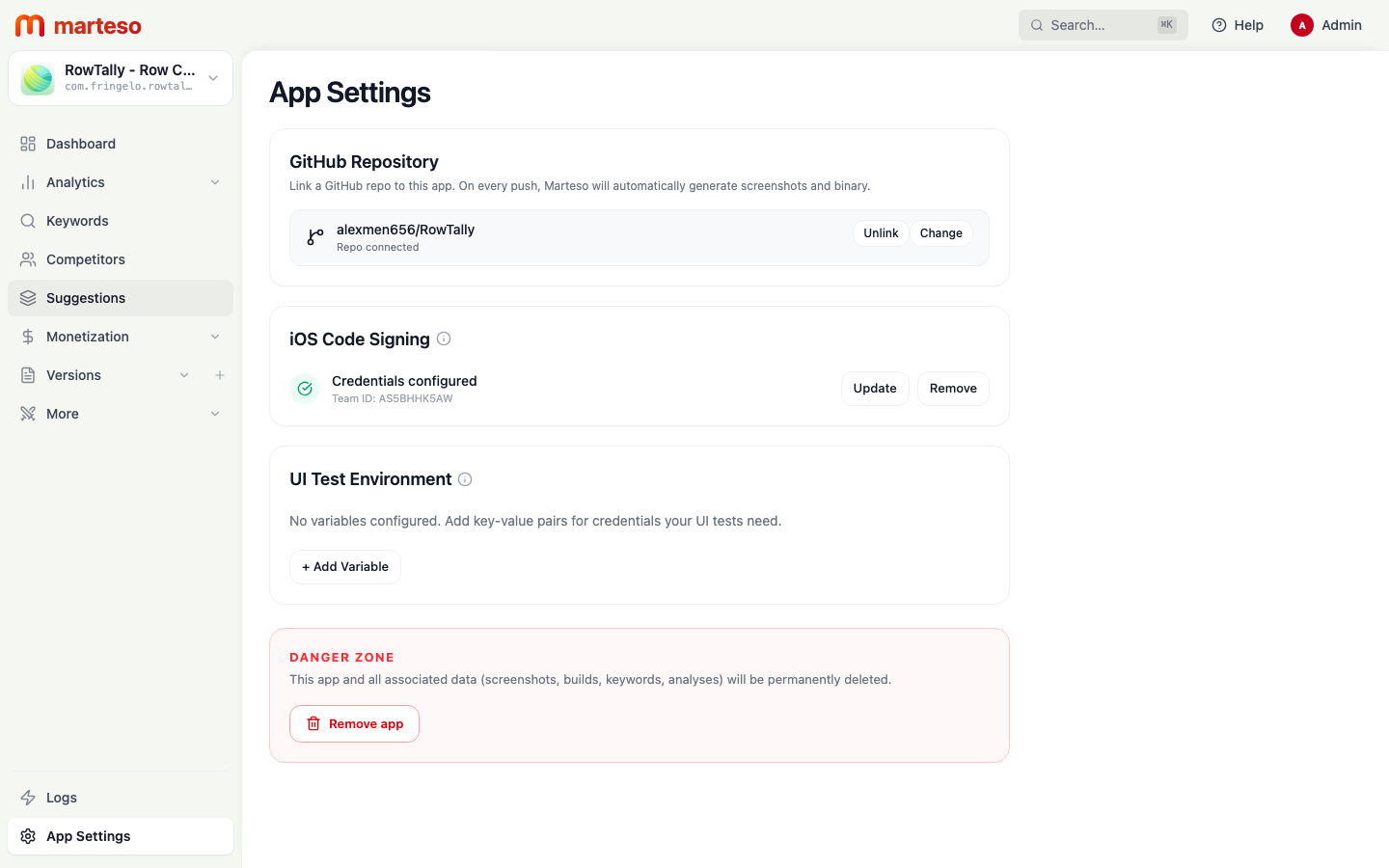
Step 2 — Push to trigger a build
Push any commit to your repository. Marteso automatically:
- Checks out your latest code
- Builds and signs the IPA
- Runs your UI tests to generate screenshots at all required device sizes
- Attaches the output to the active version in Versions
Step 3 — Review builds in Logs
Open Logs to see all build jobs triggered by GitHub pushes.
Each job shows:
- Commit hash and branch
- Status: COMPLETED (IPA ready) or FAILED
- Timestamp
You can also click Run Now to trigger a build manually without pushing a new commit.
Step 4 — Review and push metadata + screenshots
Once a build completes, open Versions to review:
- The generated screenshots attached to the current version per locale
- The app metadata (name, subtitle, keywords, description) per locale
- Use Push Metadata to push approved metadata to App Store Connect
- Use Sync from ASC to pull the latest metadata from App Store Connect into Marteso
UI test requirements
Marteso runs your app's UI tests to capture screenshots. Your repository must include UI tests that use XCTest screenshot attachments. If your test suite doesn't generate screenshots, the build will succeed but no screenshots will be attached.
Refer to Apple's Writing UI Tests documentation for how to add screenshot capture to your UI test targets.